
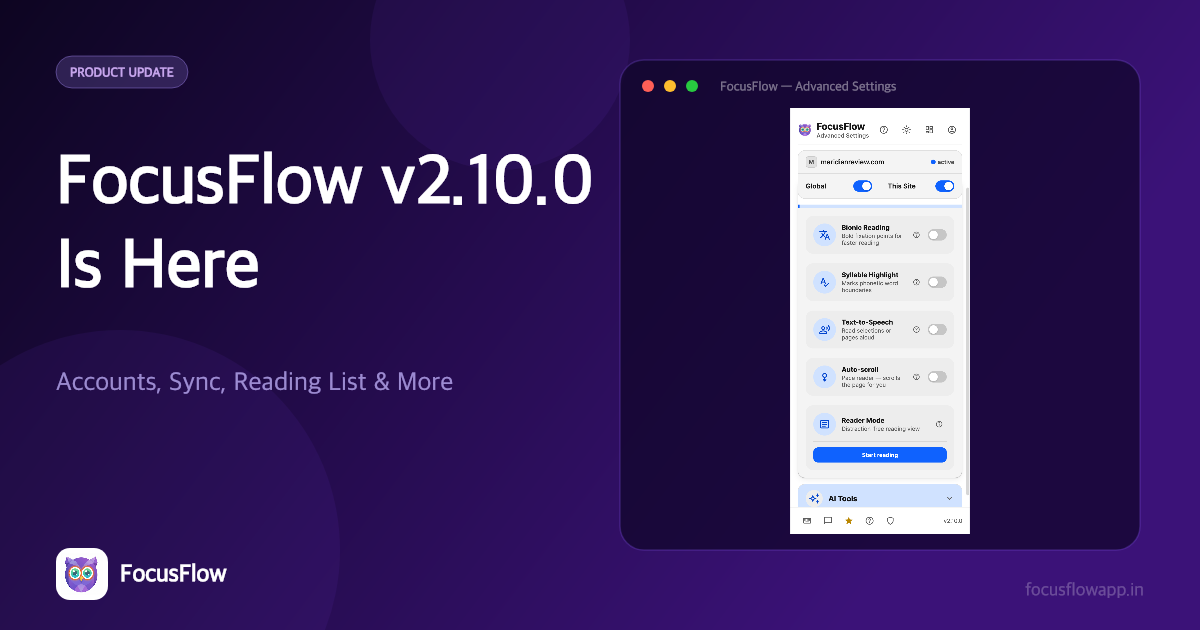
FocusFlow v2.10.0 is here, and it's the release that makes your setup portable. Until now, everything FocusFlow did lived on one device — tune your fonts, build your profiles, and they stayed on that machine. Version 2.10.0 introduces Accounts & Sync, along with a Reading List for saving pages, To-Do Lists for quick tasks, and a wave of accessibility polish across the account experience.
Whether you read on a laptop at work and a desktop at home, or you just want your carefully tuned reading setup backed up, this release is for you.
Here is what's waiting for you in version 2.10.0.
👤 Accounts & Sync
FocusFlow is now a full account product. Create a free FocusFlow account with email and password or Sign in with Google — signing in is free for everyone, and your reading tools keep working whether you sign in or not.
Signing in unlocks the option to turn on Sync Settings (Pro), which backs up your settings and profiles to your account and restores them on any device. Sign in on your second machine, turn sync on, and your setup follows you. Your To-Do tasks stay in sync with the FocusFlow web app too.
Lost your password? There's a "Forgot password?" link right in the Account card — it sends a reset link to your inbox, with a clear, neutral confirmation either way. For the full steps, see the Help section.
How to sign in
- Open the FocusFlow popup → click Advanced Settings.
- Switch to the More tab.
- In the Account card, sign in with email and password or Sign in with Google. Need an account first? Click Create account.
- Once signed in, toggle Sync Settings (Pro) and click Sync now to back up your settings and profiles.

✉️ Verify Your Email to Sync
When you create an account with email and password, FocusFlow sends a verification link to your inbox automatically. Your account works right away — you can sign in immediately — but sync stays paused until you verify, so your settings are never attached to an address you don't control.
The Account card shows a clear "Verify your email to sync" banner with a Resend button if the email hasn't arrived. Click the link in the email, and sync unlocks automatically — no signing in again. Google accounts are verified by Google, so Google users never see this step.
📚 Reading List
Found a long article you don't have time for right now? Save it to your Reading List and come back to it later — like bookmarks, but built for reading. Free for everyone, no account needed.
You can save a page three ways:
- From Reader Mode — click the Reading List button (📌) in the top bar; it confirms with "Saved ✓".
- From the sidebar — popup → Advanced Settings → Lists tab → Save current page.
- From the right-click menu — right-click anywhere → FocusFlow → Save to Reading List.
Managing your list lives in the Lists tab: click a saved page to reopen it, tick the check to mark it as read, or use Clear all to start fresh.
✅ To-Do Lists (Pro)
Keep quick tasks handy while you read. The To-Do widget sits at the top of the sidebar — always visible, right where the reading happens — so "look that up later" never lives in another app.
- Open the popup → click Advanced Settings.
- Find the To-Do card at the top of the sidebar.
- Type a task and click Add.
- Tick a task to mark it completed, or use Clear completed to tidy up.
- Sign in to your account and your tasks stay in sync with the FocusFlow web app.
🎨 Make FocusFlow Look Like Yours
This release also doubles down on personalization — the way the extension itself looks and feels:
- Six themes for FocusFlow's interface: Light, Sepia (warm cream), Quiet (low visual noise, built for ADHD readers), Low saturation (sensory-friendly), Dark, and Dusk (warm low-glare dim).
- Nine colour palettes that feed the reading features — overlays, highlights, and reading rulers all pick up the palette you choose, with a custom swatch on Pro.
- Interface font and text size: set FocusFlow's own screens to Lexend, Atkinson Hyperlegible, or OpenDyslexic, and scale the interface text to 100%, 112%, or 125%. Your pages stay styled by your typography settings; this tunes the dashboard itself.
Both settings live in Settings → How FocusFlow looks → Reading comfort, and they stay on your device — like all FocusFlow settings, they're never synced anywhere without your say-so.
♿ Accessibility Polish You Can Feel
This release also cleans up the account experience itself, because error handling is accessibility:
- Plain-language error messages. Every sign-up and sign-in failure now shows a clear, actionable message — like "Password must contain at least 8 characters" — instead of raw technical strings from the authentication service.
- In-flight states. Sign-in, sign-up, and password-reset buttons disable themselves while a request is running, with a visible loading status — no more double-submitting and wondering what happened.
- Screen reader improvements. Status messages announce politely through live regions, feedback never relies on colour alone (icons and text accompany every state), and signing out is confirmed with a clear "You've been signed out." message instead of a status that hangs on "Signing out…".
Related Reading
- Read Aloud + Reader Mode: FocusFlow's Immersive Reading Stack — combine text-to-speech with voice highlighting and the floating player.
- Define, Simplify, Summarize: A Guide to FocusFlow's AI Reading Tools — three in-line AI tools on the text you're reading.
Update Today
FocusFlow v2.10.0 is rolling out now as a free update. Version 2.10.0 has been officially released in both the Chrome Web Store and the Firefox Add-ons store!
Install FocusFlow Free on Chrome
Signing in is free, sync is opt-in, and your reading tools work exactly as before whether you make an account or not. Update today and take your reading setup with you!