
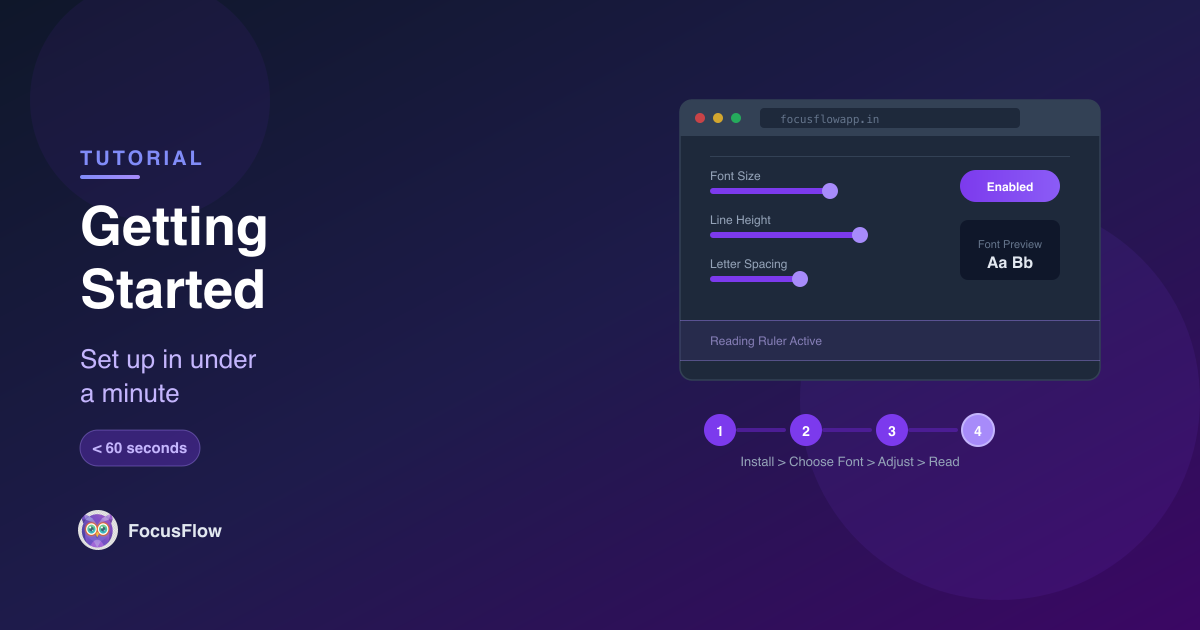
One of FocusFlow's biggest strengths is how easy it is to use. There's no setup wizard, no account creation, no complicated configuration. You can go from installation to a fully customized reading experience in less than 60 seconds.
Here's everything you need to know to get started.
Step 1: Install from the Chrome Web Store
Head to the Chrome Web Store and click "Add to Chrome." The extension installs instantly — no browser restart required.
Once installed, you'll see the FocusFlow icon in your browser toolbar. Click it to open the popup and access all your settings.
Tip: If the icon doesn't appear in the toolbar, click the puzzle piece icon (Extensions menu) and pin FocusFlow for quick access.
Step 2: Choose Your Font
The first thing most users do is pick a font. Open the FocusFlow popup and browse the available dyslexia-friendly fonts. Each font is designed to improve letter recognition and reduce character confusion.
Try a few options and see which one feels most comfortable for your reading. There's no "right" choice — the best font is the one that works for you.
Step 3: Adjust Typography Settings
Once you've picked a font, fine-tune the reading experience using the typography sliders:
- Font Size — Make text larger or smaller without breaking the page layout
- Line Height — Add vertical space between lines to reduce crowding
- Letter Spacing — Increase gaps between characters for better recognition
- Word Spacing — Add breathing room between words
These adjustments are applied in real time. Slide a control and watch the page update instantly — no need to save or refresh.
Step 4: Try the Reading Aids
FocusFlow includes several reading aids that help you stay focused on the text:
Reading Ruler
A horizontal colored bar that follows your mouse, helping you track the current line. Perfect for dense paragraphs and multi-column layouts.
Spotlight Focus Line
Dims everything except the area around your cursor, creating a focused reading zone. Ideal for readers with ADHD or anyone easily distracted by surrounding content.
Color Overlay
Applies a colored tint over the entire page to reduce visual stress and glare. Adjust the color and opacity to find your ideal reading environment.
Step 5: Save a Profile (Optional)
If you've found settings you love, save them as a profile. Profiles let you store different configurations for different situations — one for reading articles, another for studying, and so on.
To save a profile, open the FocusFlow popup, configure your settings, and use the Save Profile option. Switch between saved profiles anytime with a single click.
Per-Site Settings — It Just Works
Here's something you might not even notice at first: FocusFlow automatically remembers whether the font is enabled or disabled for each website. Turn it on for your favorite news site, leave it off for others — FocusFlow remembers your choice so you don't have to toggle it every time you visit.
No manual toggling every visit. Each website's font state is saved locally in your browser.
Keyboard Shortcuts for Power Users
Once you're comfortable with FocusFlow, speed up your workflow with keyboard shortcuts:
| Action | Mac | Windows / ChromeOS |
|---|---|---|
| Toggle font on/off | Option + Shift + F | Alt + Shift + F |
| Increase font size | Option + Shift + ↑ | Alt + Shift + ↑ |
| Decrease font size | Option + Shift + ↓ | Alt + Shift + ↓ |
These shortcuts work on any page where FocusFlow is active. No need to open the popup — just press the keys.
That's It — You're Ready
FocusFlow is designed to get out of your way. There's no learning curve, no training required, and no configuration files to edit. Install it, adjust a few sliders, and start reading more comfortably.
If you ever want to explore the full feature set, check out our deep dive into core features or learn about the reading aids in detail. Curious what makes FocusFlow different? Read why FocusFlow stands out from other accessibility tools. And if privacy matters to you, see how FocusFlow keeps your data 100% private.