
For many readers — especially those with dyslexia or ADHD — getting through a long article online feels like running uphill. Dense paragraphs, cluttered layouts, and tiny fonts turn reading into a chore rather than a pleasure.
FocusFlow v2.5 introduces two powerful new tools to tackle this head-on: Bionic Reading and Reader Mode. Together, they transform how your brain processes and interacts with web content.
🧠 What Is Bionic Reading?
Traditional text presents every letter with equal weight. Your eyes have to do all the work — scanning every single character in every single word. For most people, this is fine. For readers with attention or processing challenges, it can be exhausting.
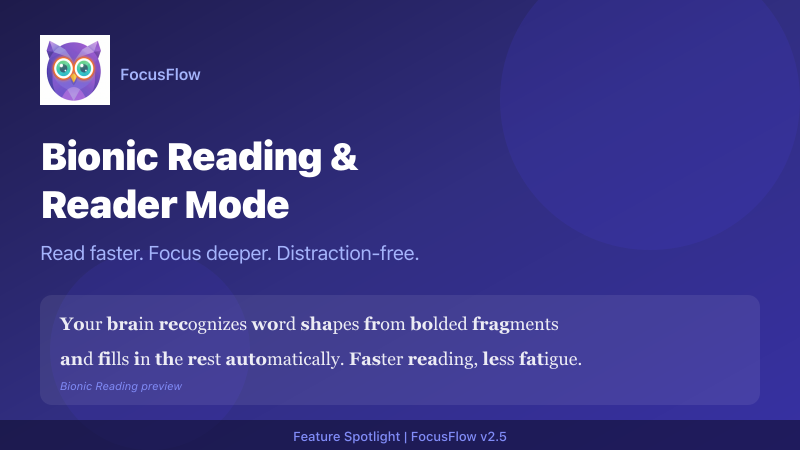
Bionic Reading takes a different approach. It bolds the initial portion of each word, creating visual anchors that your brain latches onto. Instead of reading every letter, your brain recognizes the word shape from the bolded fragment and fills in the rest automatically.
The result? Faster reading, better focus, and significantly less mental fatigue.
How Bionic Reading Helps
- ADHD: The bolded anchors keep your eyes moving forward instead of drifting or re-reading the same line.
- Dyslexia: Word shapes become easier to recognize, reducing letter-reversal confusion.
- General fatigue: Even neurotypical readers report less strain during long reading sessions with Bionic Reading enabled.
Using It in FocusFlow
Enabling Bionic Reading is simple — toggle it from the FocusFlow popup menu. It works on any website and stacks perfectly with your existing settings: custom fonts, adjusted spacing, color overlays, and more.
📖 What Is Reader Mode?
Even with the best typography settings, a cluttered webpage can still overwhelm you. Ads competing for your attention, sticky navigation bars eating up screen space, auto-playing videos in the sidebar — the modern web wasn't designed for focused reading.
Reader Mode strips it all away. With a single click, FocusFlow extracts just the article content and presents it in a clean, minimal layout.
What Reader Mode Removes
- Advertisements and promotional banners
- Navigation bars and sidebars
- Pop-ups, modals, and cookie consent banners
- Unrelated images and embedded widgets
What Reader Mode Keeps
- The full article text
- Essential images relevant to the content
- Your FocusFlow settings — fonts, spacing, overlays, and Bionic Reading all carry over seamlessly
Who Is Reader Mode For?
- Students researching across dozens of tabs and articles
- Professionals reading documentation, specs, or reports online
- Anyone who wants a clean, distraction-free reading experience without installing a separate extension
Better Together
Bionic Reading and Reader Mode are powerful individually, but they truly shine when used together. Activate Reader Mode to strip away the noise, then enable Bionic Reading to accelerate your comprehension. Add a color overlay to reduce glare, and you've built yourself a reading environment that rivals a dedicated e-reader — right inside Chrome.
Here's an example setup for deep reading sessions:
- Reader Mode — on
- Bionic Reading — on
- Font — Lexend
- Color Overlay — warm yellow at 15% opacity
- Line Height — 1.8
Experiment with combinations to find what works best for you. Every reader is different, and FocusFlow gives you the tools to build your ideal setup.
Ready to try the new reading experience? Update to FocusFlow v2.5 or install it fresh from the Chrome Web Store.
Install FocusFlow Free on Chrome
Want to learn about all the new features in v2.5? Check out our full release notes. Curious about our other reading tools? Explore our Reading Aids deep dive.