
For a long time, FocusFlow lived inside a small toolbar popup. It worked — but as we added more features, that popup started feeling like a cluttered closet. Everything was in there. Nothing was easy to find.
FocusFlow v2.6 changes that with the Advanced Sidebar: a full-height side panel that organizes every setting the extension has into four clearly labeled tabs. This post is a tour.
If you haven't opened it yet, click the FocusFlow icon in your toolbar, then tap Advanced Settings at the bottom of the popup. The sidebar slides out from the right edge of your browser. Let's walk through it.
Tab 1 — Typography
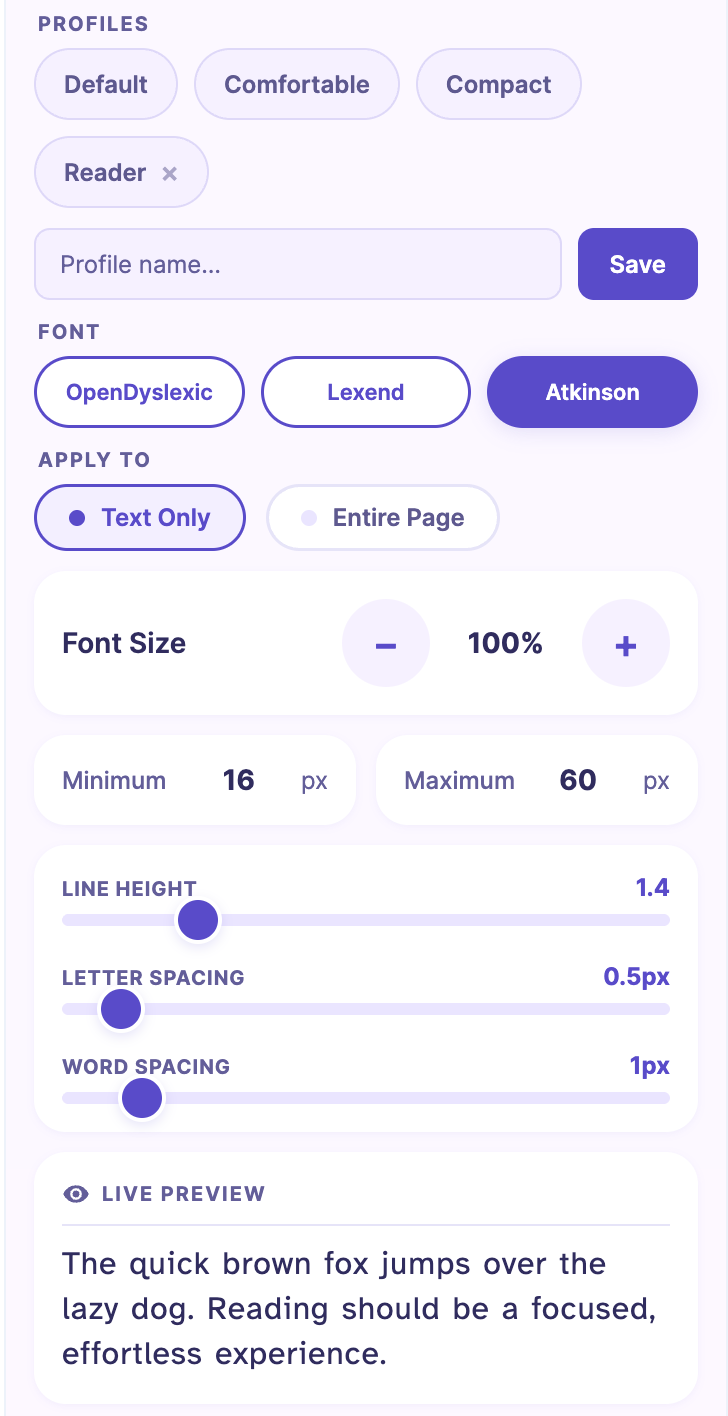
This is where most of your time will go. The Typography tab is split into five areas, top to bottom:
Profiles
Three built-in profiles ship with FocusFlow:
- Default — balanced sizing for everyday reading.
- Comfortable — larger font, airy line height, extra spacing. Our favorite for long articles.
- Compact — smaller, tighter. Good for dashboards and apps where you want more on screen.
Tap a profile card to apply it instantly. Build a custom profile by tuning the sliders below and saving it — profiles carry over between sites, so they're a fast way to switch gears.
Font
Three accessible fonts to choose from:
- OpenDyslexic — the classic dyslexia-friendly font with weighted bottoms.
- Lexend — engineered to improve reading proficiency.
- Atkinson Hyperlegible — maximum character distinction, optimized for low-vision readers.
Not sure which is right for you? We wrote a comparison of all three.
Apply To
Pick whether FocusFlow restyles Text Only (the safe default, skips icon fonts and SVGs) or the Entire Page for sites where the more aggressive mode looks better.
Size, Spacing, and Limits
Sliders for font size (80%–220%), line height (1.0–3.0), letter spacing (0–8px), and word spacing (0–10px). Below those are the new Font Size Limits introduced in v2.6 — set a minimum and maximum in pixels and FocusFlow clamps every page to that range.
Live Preview
A small preview block at the bottom updates as you tune. You see exactly what each change does before it hits the page.
Tab 2 — Visual Aids
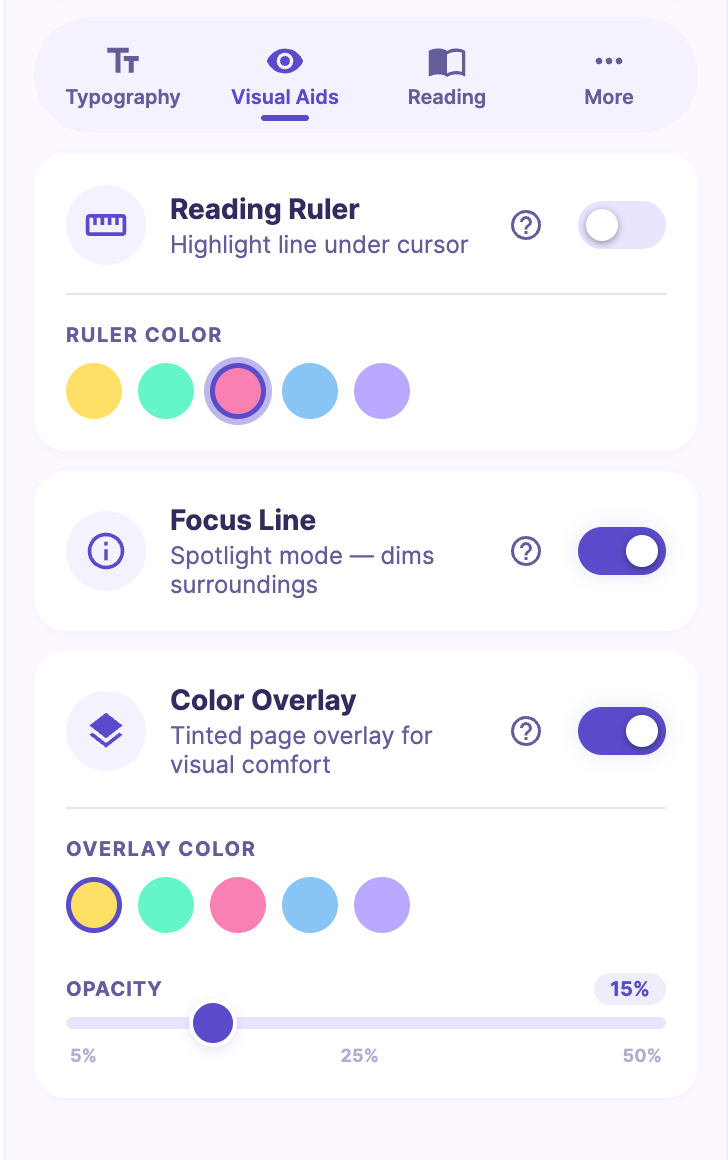
The three classic reading aids, each with their own controls:
- Reading Ruler — a colored band that follows your cursor to keep your eyes on the line you're reading. Pick from five colors: yellow, mint, pink, blue, or lavender.
- Focus Line — a spotlight effect that dims the page except for the line your cursor is near. Great for ADHD readers, research papers, and moments where you catch yourself drifting.
- Color Overlay — a tinted wash over the entire page to reduce visual stress. Five colors and an opacity slider (5%–50%) to dial in exactly the right weight.
All three can run at once. Sometimes that's exactly what you want.
Tab 3 — Reading
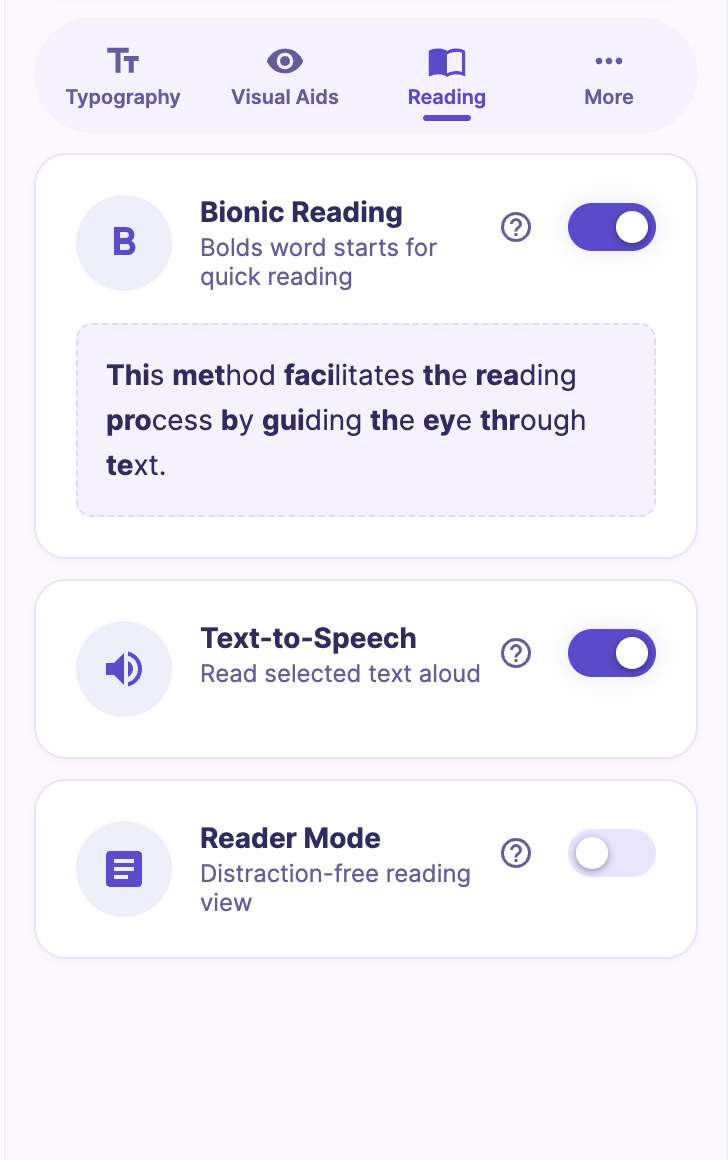
The heavyweight reading tools we introduced in v2.5, now on their own tab:
- Bionic Reading — bolds the first few letters of each word to create artificial fixation points.
- Text to Speech — highlight any text on a page and have it read aloud using your device's native voice engine. Zero network calls.
- Reader Mode — strips away ads, sidebars, and clutter so you see only the article.
Every reading tool plays well with the rest. Enable Bionic Reading inside Reader Mode with the Comfortable profile and Lexend font, and you've built a genuinely excellent long-form reading environment in four taps.
Tab 4 — More
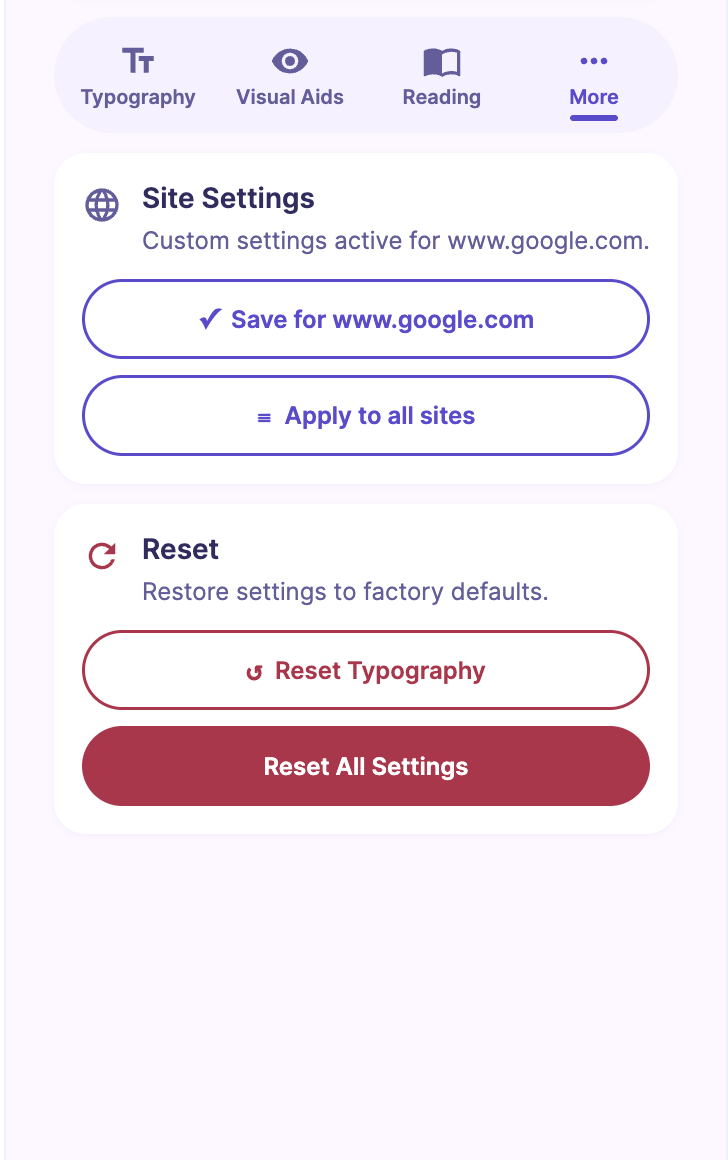
The utility tab. Four groups:
Site Settings
This is where per-site typography lives. Save for this site stores your current typography against the current hostname, so FocusFlow restores it every time you come back. Apply for All Sites takes your current typography and pushes it to every site at once — the nuclear option when you've found a setup you love and want it everywhere, even on sites you've previously customized. If per-site typography is new to you, we've written a full guide.
Reset Typography
A one-click safety net. Reset Typography clears every typography value FocusFlow has stored locally — the global baseline and every per-site override — and takes you back to a clean slate. Use it whenever you've experimented your way into a corner and want to start fresh.
Keyboard Shortcuts
A reference for every shortcut FocusFlow understands:
- Alt + Shift + D — Open the popup
- Alt + Shift + F — Toggle the accessibility font
- Alt + Shift + ↑ / ↓ — Increase / decrease font size
All shortcuts are remappable from chrome://extensions/shortcuts if your keyboard layout conflicts with the defaults.
Theme
Light and dark themes for the sidebar itself — it matches the extension popup automatically, but you can force either mode if you prefer.
The Whole Thing, One Click Away
The best part of the Advanced Sidebar isn't any single tab — it's that all of these settings are reachable from one place, without leaving the page you're reading. Adjust the font, toggle a reading aid, and save it per-site, all in about ten seconds.
Open it once. You'll probably leave it open.
Install FocusFlow Free on Chrome
New to v2.6? Read the full release notes or jump to the deep dive on Per-Site Typography.